To put your face on a meme, upload a selfie as the source and the meme picture as the target in a photo face swap editor. Generate the swap, check the expression, and download it. If you want to add or change the joke, place your caption on the finished image with a photo editor’s text tool.
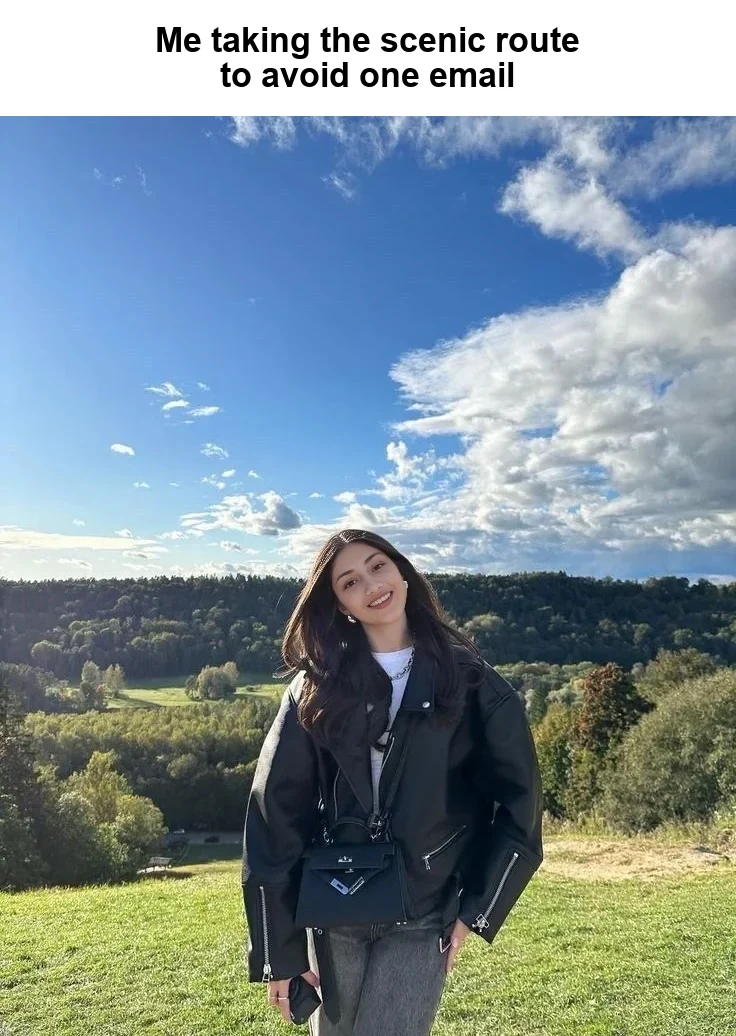
Here’s a complete still-image example using a hillside portrait from our gallery. We reused its existing face swap result and added a caption above the picture. You can follow the same sequence with a photo you have permission to edit and share.
1. Choose a meme picture with a visible face
Start with the scene that makes your joke work. A dramatic view can suit an everyday frustration. A surprised expression can suit an unexpected message. Pick the picture first, then choose a selfie that fits the head position.
For this example, the hillside portrait gives us a huge sky, a relaxed pose, and a person looking toward the camera. The caption about avoiding an email works against that scenic setting. You can inspect the original source, target and result together.
Look for one clearly visible face in the target. If the person is tiny, zoom in before uploading and check whether you can make out the eyes and mouth. A beautiful background alone won’t help viewers recognize you.
If a template already has text, check where the letters sit. Words across the eyes or mouth make the facial detail harder to use. A clean version of the picture gives you more room to place the joke after the swap.
2. Pick the selfie people will recognize
Choose a sharp photo with your eyes and mouth visible. Match the direction and tilt of the target’s head as closely as you can. For a smiling template, a source with a similar expression is a useful starting point.
Avoid picking a selfie only because you like its lighting or filter. Ask whether it gives the editor a clear view of the features you want in the result. Heavy smoothing, sunglasses, and hair across an eye can make those features harder to compare.
In the hillside example, the target’s head tilts to one side. After generating your version, compare the eye line and mouth against that pose. For more detailed checks, use our guide to realistic face swap results.
3. Upload your face and the meme target
Open the SwapThisFace photo editor. Under “Your face,” choose your selfie. Under “Your new look,” choose the still photo you want to appear in.
Keep those roles clear. The source supplies your face. The target supplies the setting and the pose you picked for the joke. If the result uses your selfie’s background instead of the meme scene, check whether you reversed the uploads.
Use JPG, PNG, or WebP files up to 10 MB each. If your phone saves a photo as HEIC, export a supported copy before uploading. Renaming the file extension won’t convert it.
Wait for both previews to appear, review the processing notice, and create the swap. If you need help with the upload and download controls, the two-photo face swap walkthrough covers each step.
4. Check whether the expression still tells the joke
Review the face before adding the caption. Compare the mouth, eyes, and head angle with the original target. Then look at the whole picture at the size you expect people to see in a message.
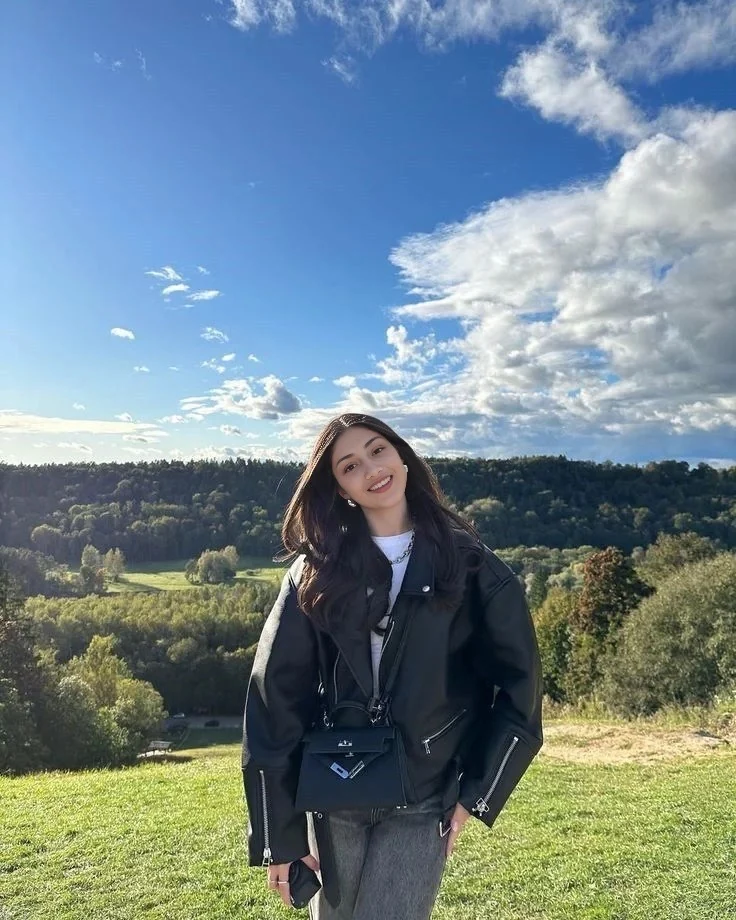
A face can look recognizable while losing the expression that made the template funny. If the joke depends on a wide-eyed reaction, check the eyes. If it depends on a grin, check the mouth and teeth. Try a different source photo if those details feel wrong.
Change one input at a time so you can tell what helped. Keep the target while trying a selfie with a closer angle. If the target face is too small or obscured to inspect, choose a clearer template.
5. Add the caption after downloading
Save the result and open it in a photo editor with a text tool. SwapThisFace handles the face swap, and this example’s caption was added afterward.
For our version, we placed a white strip above the photo and used two lines of dark text: “Me taking the scenic route” and “to avoid one email.” That leaves the face and skyline visible while giving the setup and punchline their own lines.
Write the joke before choosing a font. If you need to shrink the lettering to fit a long explanation, shorten the caption. Use strong contrast and avoid putting the punchline over a busy part of the landscape.
Preview the whole meme at phone size. Check that the text is readable, the face is recognizable, and the joke makes sense without an explanation. Export a separate copy so you can revise the caption later.
Fix common face swap meme problems
The result barely looks like me
Compare the output with your source at a similar size. Try a clearer source with a closer head angle and fewer obstructions. If the face is tiny in the target, choose a closer portrait so viewers can actually see the resemblance.
The caption disappeared or became distorted
Use the uncaptioned picture as your target, then add the words to the downloaded result. If you keep an existing caption in the target, inspect every letter near the edited face before sharing.
The template has two people
For this workflow, choose a template with one visible face. If a crop around one person still makes the joke work, prepare that crop first. Keep enough of the scene to preserve the visual setup.
Questions about putting your face on a meme
Can I put my face on a meme using my phone?
Yes. Open the web editor on iPhone or Android, choose the source and target from your photos, and save the finished result. Add the caption afterward with a photo editor that supports text.
Can I make a face swap meme for free?
You can try a face swap for free with the current guest offer of one successful photo swap. Further attempts require credits through an available paid option. Check the current pricing before planning several variations.
How do I put someone else’s face on a meme?
With their permission, upload their portrait as the source and your chosen meme picture as the target. Let them review the finished joke before sharing, particularly when the caption could be taken as something they actually said or did.
Can I use my own photo as the meme template?
Yes. A photo you took can supply the scene, pose, and expression. Choose one with a visible face and space for a readable caption, then use your selected portrait as the source.
Can I put my face on an animated GIF with this method?
This walkthrough creates a still image from two photos. An animated GIF needs a workflow that processes its frames. Upload a supported still photo to follow the example here.
Make your own face swap meme
Pick a scene, choose a compatible selfie, and write one short caption. Open the photo face swap editor, create your result, and check the expression before adding the text. Keep the finished image clearly presented as an edited joke when you share it.